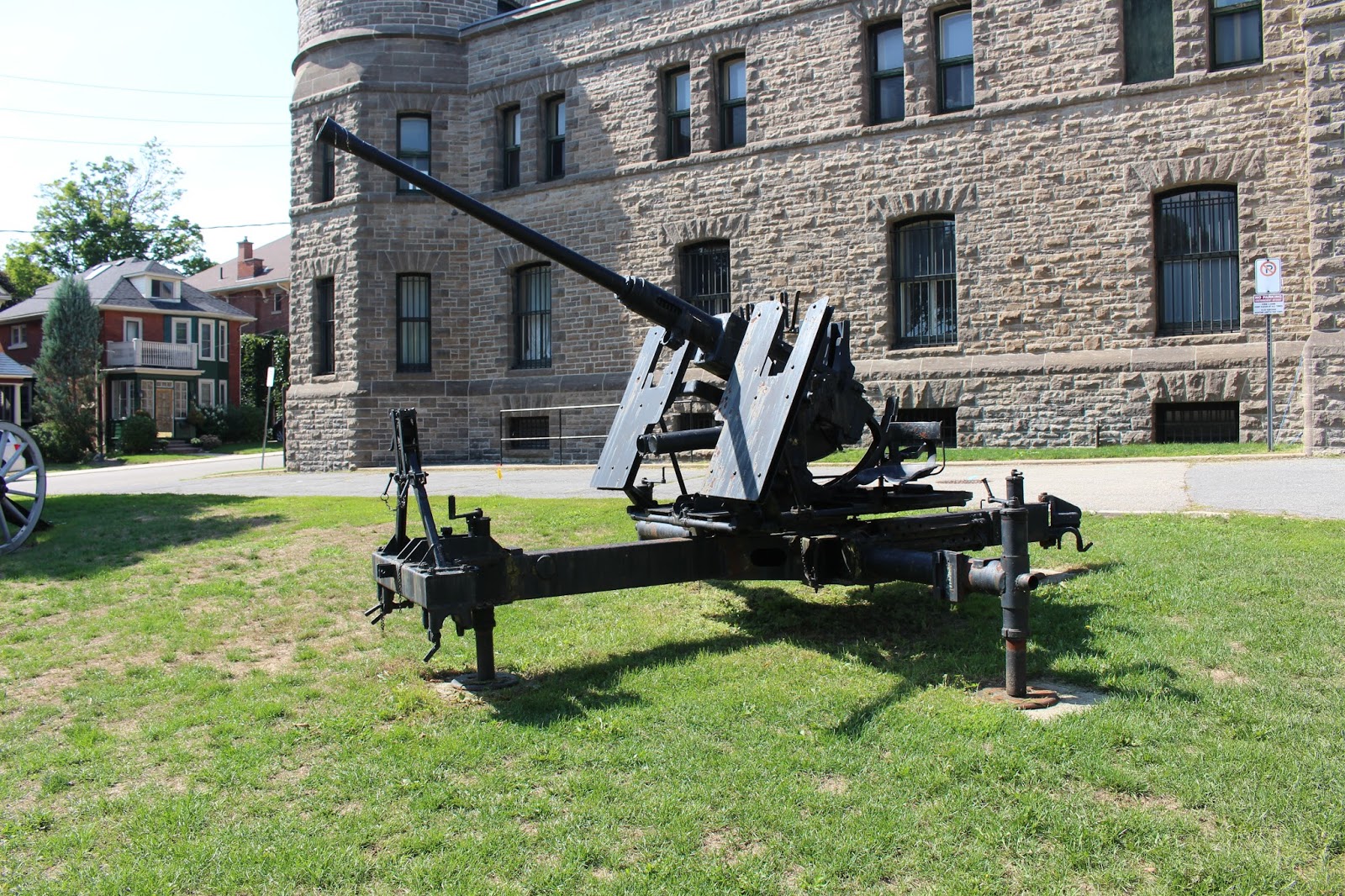
I went to Brockville twice this summer (2016) to photograph memorials for my blog site, Memorials in Ottawa. I had read about the Brockville Armoury and found it interesting but it didn't seem to qualify as a memorial for my blog site. However, when I passed it on my way from Centeen Park to Fulford Place, it looked so good I had to photograph it.
The Armoury has been officially designated as a federal heritage building and its occupants, The Brockville Rifles, have a long storied and proud history. This location qualifies as a historic site but I found no commemorative plaques though certainly the site deserves to have them. So I have posted the photographs here, on my personal blog site.
The Brockville Armoury, at 144 King St East, Brockville, Ontario, occupies most of the block north of King Street East and between East Avenue and Bartholomew Street. Closely associated with the armouryThe Brockville Rifles infantry regiment has a history worth reading about. The Canadian Army web site and the National Defence web site tell the regiment's story.
header picture
Find me on . . .
Sunday, September 18, 2016
Wednesday, August 31, 2016
Starting a Blog with Blogger
I have a friend who wants to have a blog and they want some help with getting it started. So I am going to make a blog post for them about doing that.
You will need a Google account. If you don't already have one a page for you to do that will come up as you follow the instructions.
Go to the Google web page.
By default my Google web page is google.ca but if you are in another country you probably have a slightly different address.
Click on the nine box square.
A box will open. Click "more" at the bottom of the box.
Find this icon and click on it.
You will most likely get a page with animation. There will be an orange button at the top centre of the screen with some text. The orange button says, "CREATE YOUR BLOG".
Click on the orange button that says, "CREATE YOUR BLOG".
If you don't already have a Google Account, a page will come up that you can use to create one.
If this is the page that comes up, create your account or sign in. Once you create your account or sign in or already have an account the next screen you see will have this box on it.
Enter a title for your blog on the first line where it says, "title". You can put anything you want for a title. I don't know if you can change it later.
In the next line enter and address for your blog. The extension "blogspot.com" will automatically be entered. Your address name must be unique. If that name is already being used you will be notified to change it. When you have a unique name, you will be told that and you can continue.
Choose one of the templates below. Then click on the orange button on the lower right that says, "Create blog."
Once you have done that you will go to the overview page. From the overview page you can make blog posts, change the look of your blog, add pages to your blog, add gadgets to your blog and generally manage your blog.
Blogger has help features to walk you through doing things with your blog. I will go into some basics in another post but in the meantime see if you can figure things out on your own.
If your language is not English, you can probably change your Blog to your language. To do that follow these steps.
In the upper right corner find this and click on it.
A page that looks like this will come up.
Click on the box in the upper right that has a language name in it. A list of languages will open.
The languages are listed in English. Find your language and click on it. Blogger will change to that language.
I'll have more to say on this when my friend has gone through this and asked me more questions.
You will need a Google account. If you don't already have one a page for you to do that will come up as you follow the instructions.
Go to the Google web page.
By default my Google web page is google.ca but if you are in another country you probably have a slightly different address.
Click on the nine box square.
A box will open. Click "more" at the bottom of the box.
Find this icon and click on it.
You will most likely get a page with animation. There will be an orange button at the top centre of the screen with some text. The orange button says, "CREATE YOUR BLOG".
Click on the orange button that says, "CREATE YOUR BLOG".
Enter a title for your blog on the first line where it says, "title". You can put anything you want for a title. I don't know if you can change it later.
In the next line enter and address for your blog. The extension "blogspot.com" will automatically be entered. Your address name must be unique. If that name is already being used you will be notified to change it. When you have a unique name, you will be told that and you can continue.
Choose one of the templates below. Then click on the orange button on the lower right that says, "Create blog."
Once you have done that you will go to the overview page. From the overview page you can make blog posts, change the look of your blog, add pages to your blog, add gadgets to your blog and generally manage your blog.
Blogger has help features to walk you through doing things with your blog. I will go into some basics in another post but in the meantime see if you can figure things out on your own.
If your language is not English, you can probably change your Blog to your language. To do that follow these steps.
In the upper right corner find this and click on it.
Click on the box in the upper right that has a language name in it. A list of languages will open.
The languages are listed in English. Find your language and click on it. Blogger will change to that language.
I'll have more to say on this when my friend has gone through this and asked me more questions.
Sunday, August 28, 2016
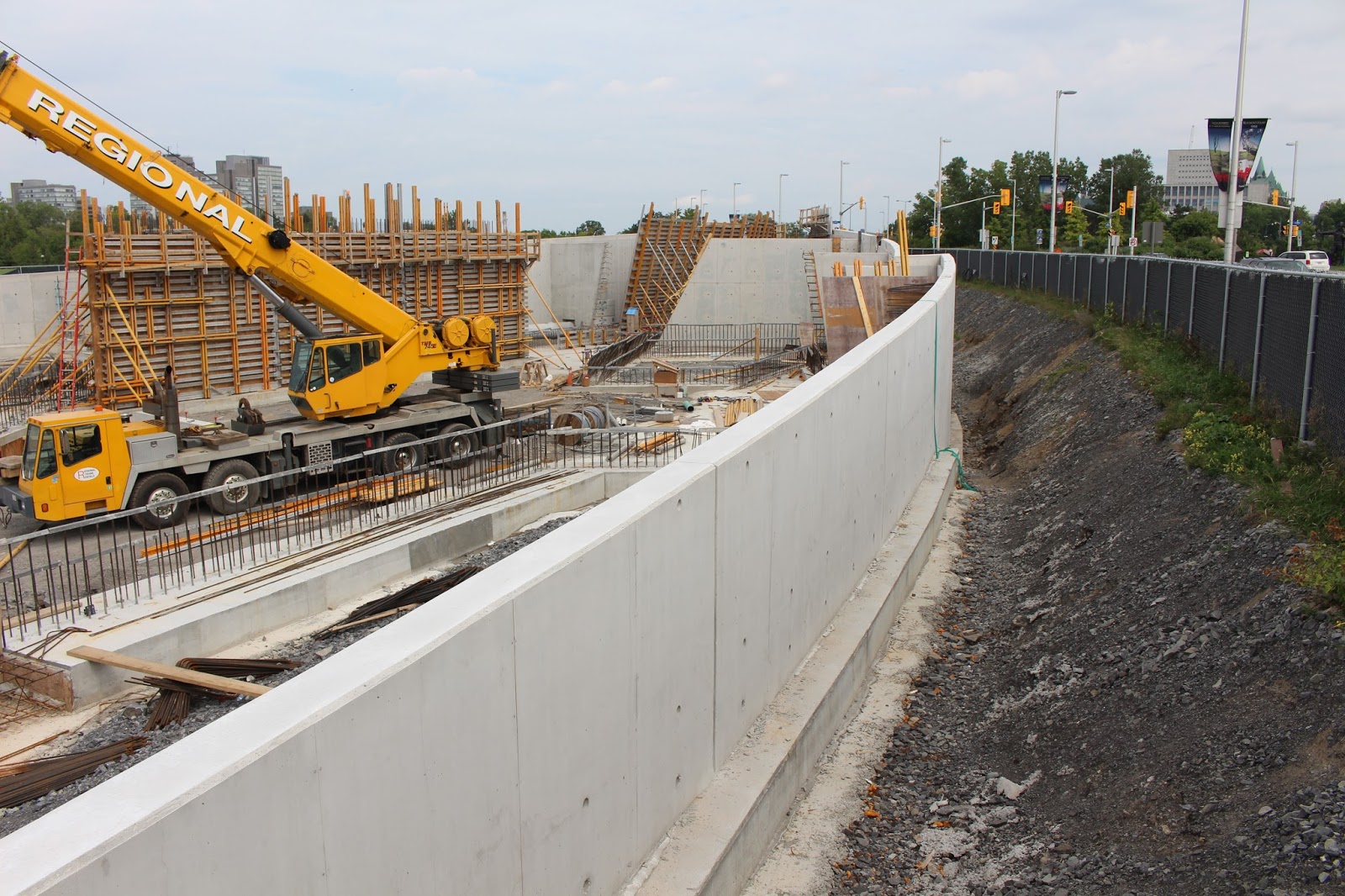
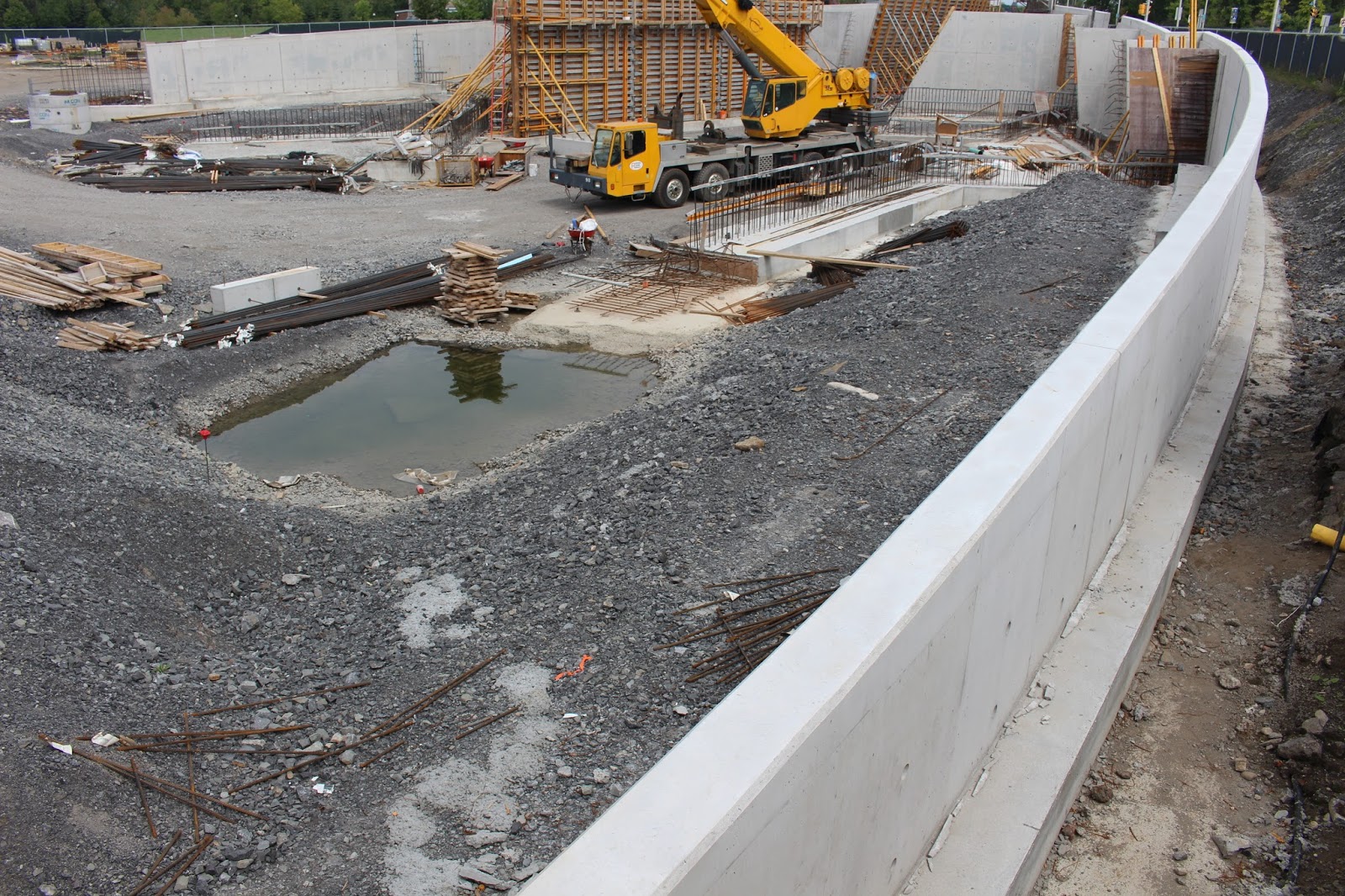
Holocaust Monument Under Construction August 28, 2016
I went downtown today to take pictures of the Canadian Firefighters Memorial, and while there I took some pictures of the Holocaust Monument's construction. As the site is fenced in with dark cloth on most of the fence my photographic technique consisted of holding the camera above my head over the fence, pointing it in the general direction of what I wanted to photograph, taking the picture and hoping for the best. I am not party to the plan so I have no comments to add to the pictures.
Subscribe to:
Posts (Atom)